
Enter your fixed daily, monthly or yearly income types for specific locations so that you already have them set up in PigVision and avoid entering them when they appear.
Go to "General entries" - "Fixed prices" - "Income".
Enter your fixed income types in the empty line in the bottom of the window. 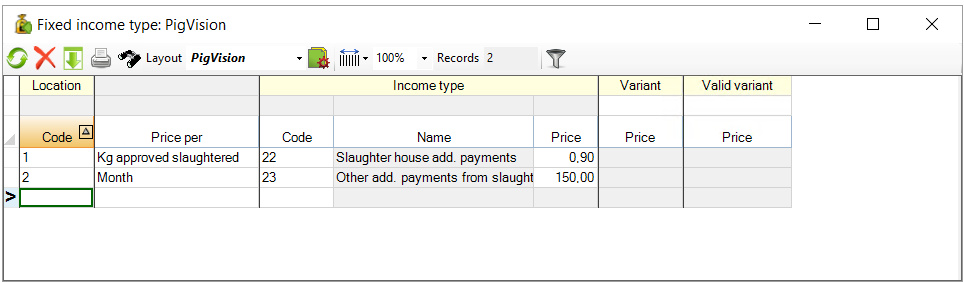
- "Location - Code": Start by entering the location that the fixed income type applies to.
- "Price per": Choose, when the income appears by choosing from the options in the dropdown menu.
- "Income type": Here, you specify which type of income you want to register as a fixed income (create the types of income in "General entries" - "Income type"). Simply enter the code for the type of income, and the name and price will automatically be filled. If you have not specified a price for the type of income, it is possible to enter the price here. However, you should be aware that if you correct the price in one place, it will automatically be corrected in the other place too.
- "Variant": Here, you can specify if your fixed income has a new price without overwriting the 'old' price. Simply write the new date in the white field just below the heading "Variant", where your fixed income changes price. This will automatically move the date down in the table under "Valid from (date)", if this is added to the layout.
In the example below, you can see that the price for payment from the slaughterhouse on 1-4-26 changes from 0.90 to 0.95. PigVision will still remember the previous price, so that your finance section in the E-control matches the periods. It is possible to double click on the price to see all entered dates and prices back in time. This will be shown in a new window.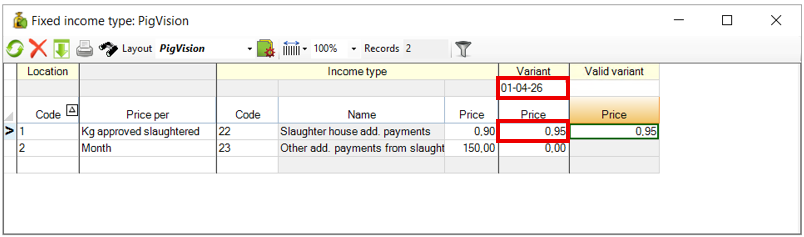
- "Valid variant": This shows the current price. This will change if you enter a different date in the white box just below the "Valid variant" heading.