
Go to "General entries" - "Other cost type" to create the different types of costs.
By default, there are already a number of cost types, but it is possible to create your own on an empty line at the bottom of the window.
Start by creating a code and name for the type of cost. Afterwards, it is possible to enter a price (e.g. it can be expenses for service).
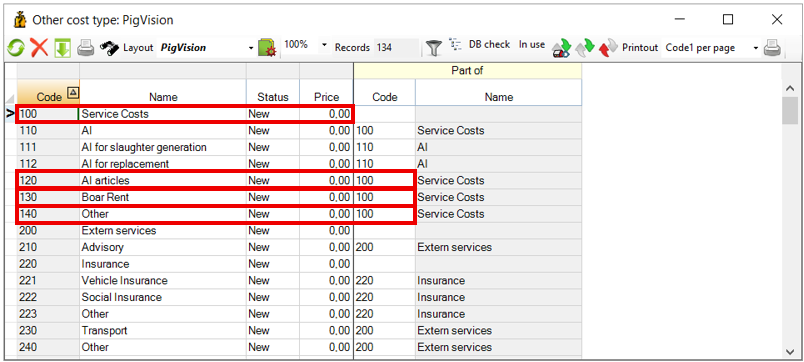
The column "Part of" is used to indicate if the cost type is a part of a total expense. If this is the case, you must remember to create the total expense first with code and name. An example could be that you have a total expense type "Service costs", where the costs "Boar rent", "Other" and "AI articles" are a part of. Therefore, the three types of costs must be linked to code 100.
There are three icons in the window that you may use:
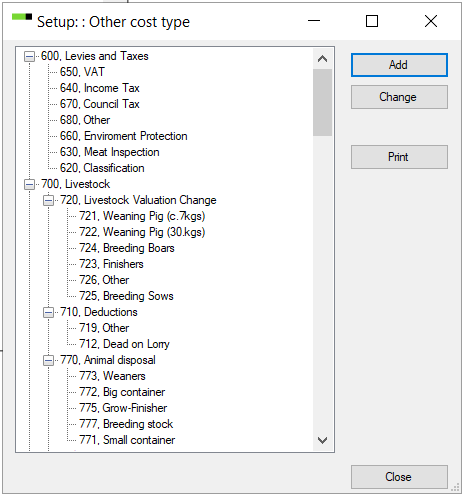
- Tree setup: Tap this icon to get an overview of how the cost types are linked. This is especially useful if you use the column "Part of".

- DB check: Click on this icon if you want to use the cost types for DB check.

- In use: Tap this to see if the chosen cost type is in use in PigVision. A new window will appear stating where the cost type has been used.
