By using the work lists (left navigation button), you can select one or more animals to register an event. You can also use the individual animal registration (right navigation button) to choose an action and then find your animal.
Worklists
When clicking on the left button from the home screen, the app will display standard worklists along with your custom worklists configurated in the AgroVision Sows web application. Consequently, any changes to worklists must be made in the web application and after a synchronization, the changes will be available in the worklist on the mobile app.
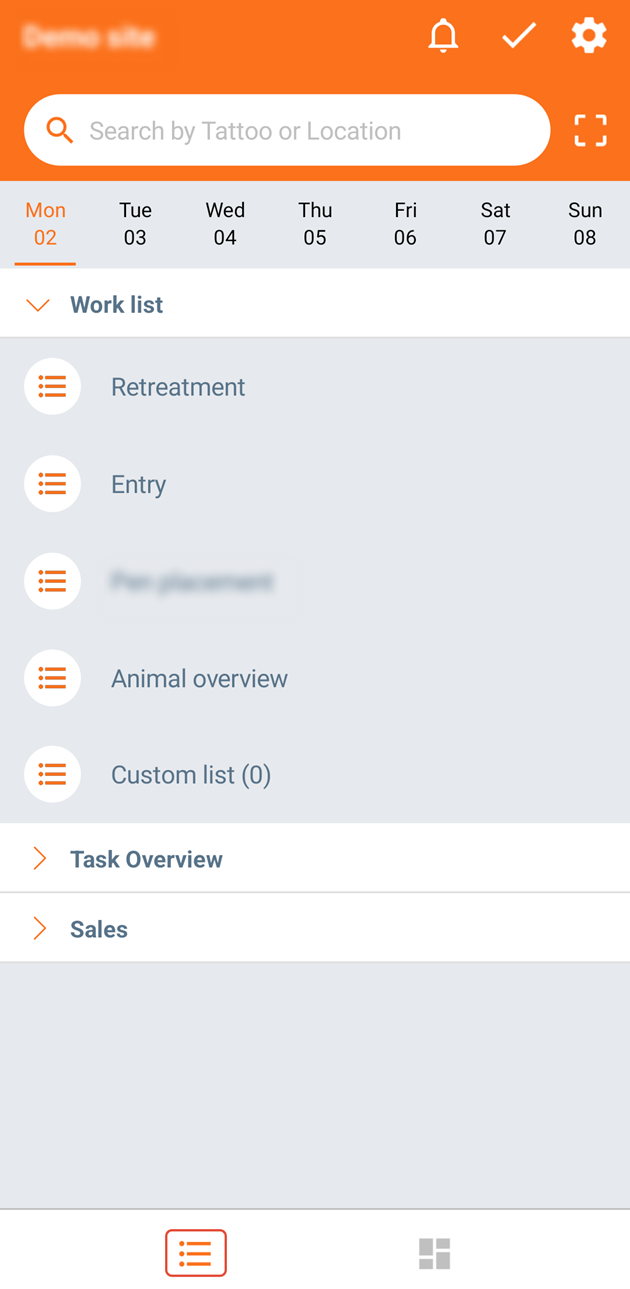
In your worklist menu, you will find:
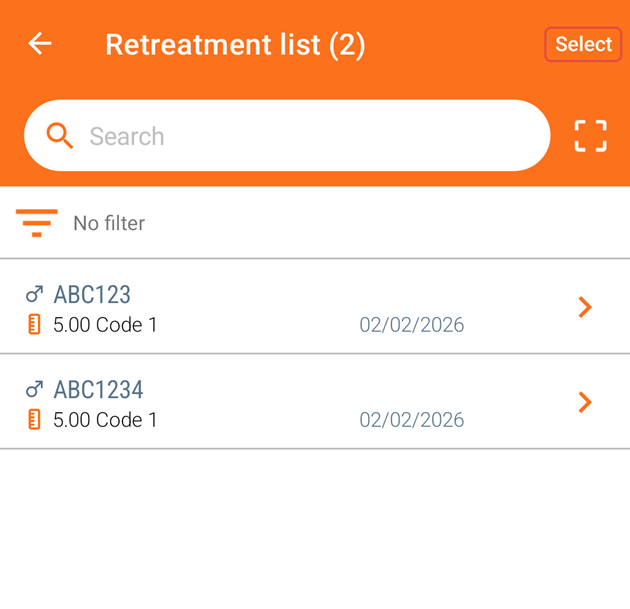
- "Retreatment": This worklist will only visible if you have retreatments the current day. When an animal have been treated (e.g. a 3-day interval has been set up for this), it is possible to retreat the animal easily and quickly in this list.
When the list is open, simply click "Select" and mark one or multiple animals to be retreated.
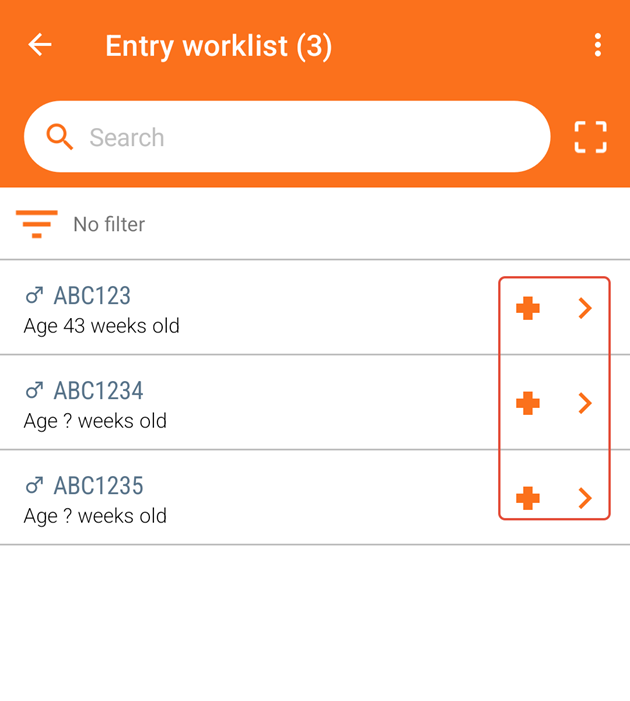
- "Entry": Change entry information or add events such as exit, condition, treatment or relocation to a selected animal. Click "+" or ">" next to animal number to enter relevant information.
- "Animal overview": Here, you can see all your animals in AgroVision Sows. You can create worklists with criteria by clicking on the "Filter and sort" icon in the top left.
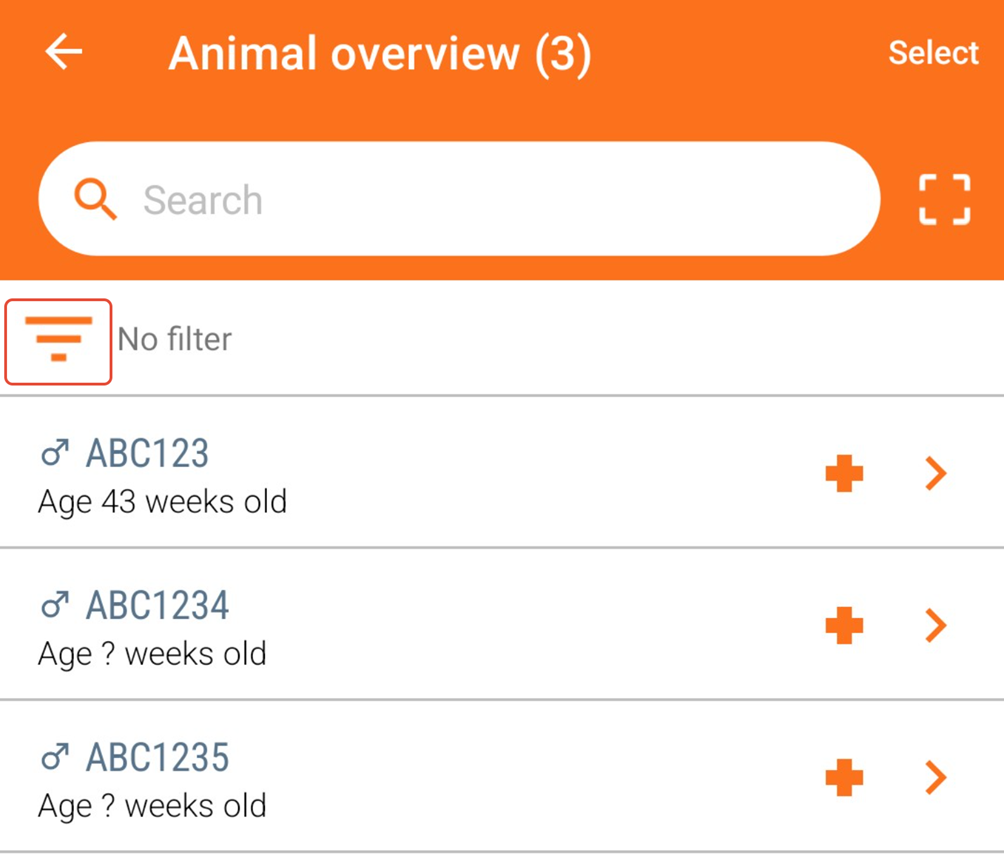
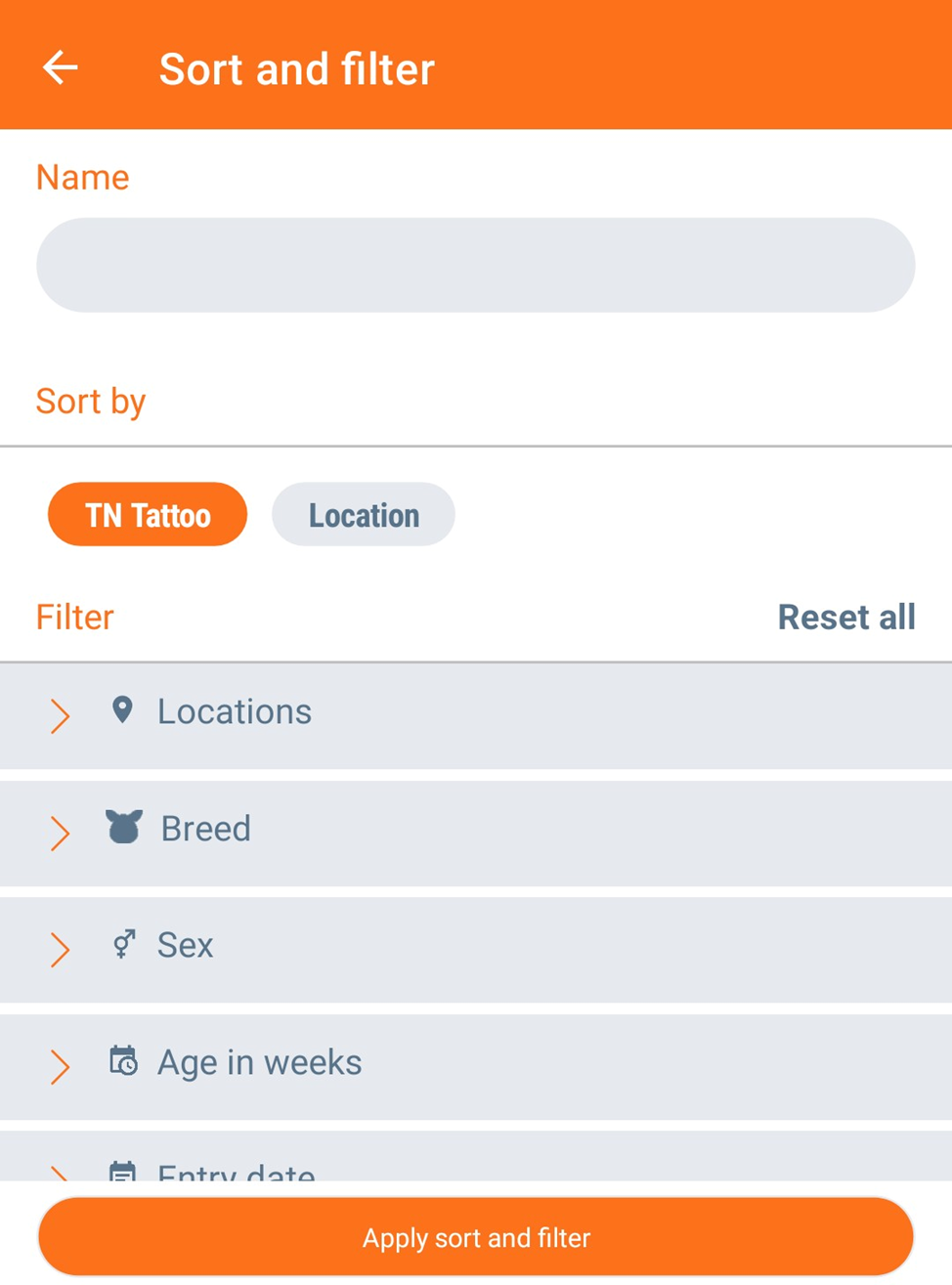
Choose to set up one or several criteria for the animals to be included on the list. The chosen criteria can be saved and the worklist named, which makes it possible to save the worklist for later use. You can save as many worklists as you want.
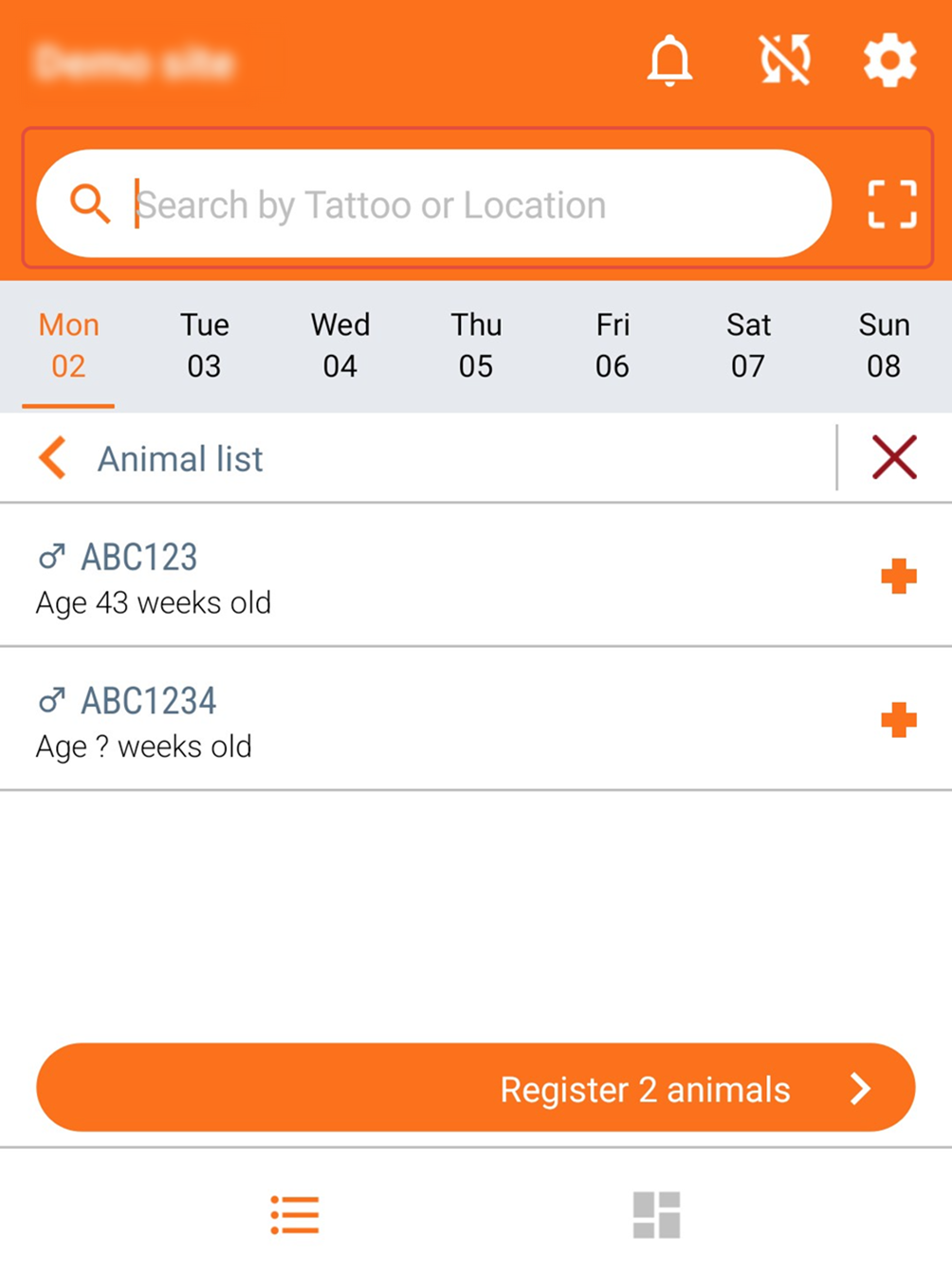
- "Custom list": Click on the list, and add your animals by scanning eartag or simply search by location or tattoo. Once you have searched and added your animals, it is possible to register an event by clicking "Register X animals".
Single event registrations
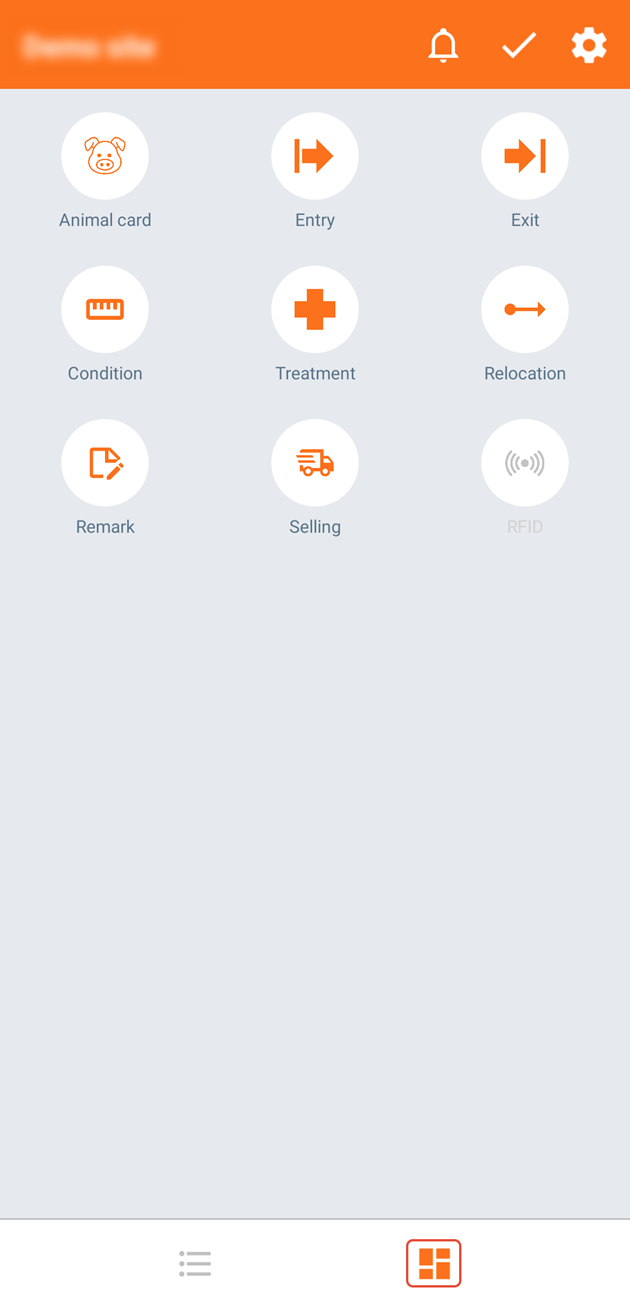
Tapping the right hand button gives you access to the individual animal entry screen, where you can enter events for animals or view an animal card. Simply tap your chosen option and then enter the animal you want to see and press the enter key. The animal will appear and you can enter the chosen event and either save and close or save and choose a new animal. This feature is useful when you want to enter a quick event, when you know the animal in question and do not need to choose it from a list.
Register events by using the animal number or location
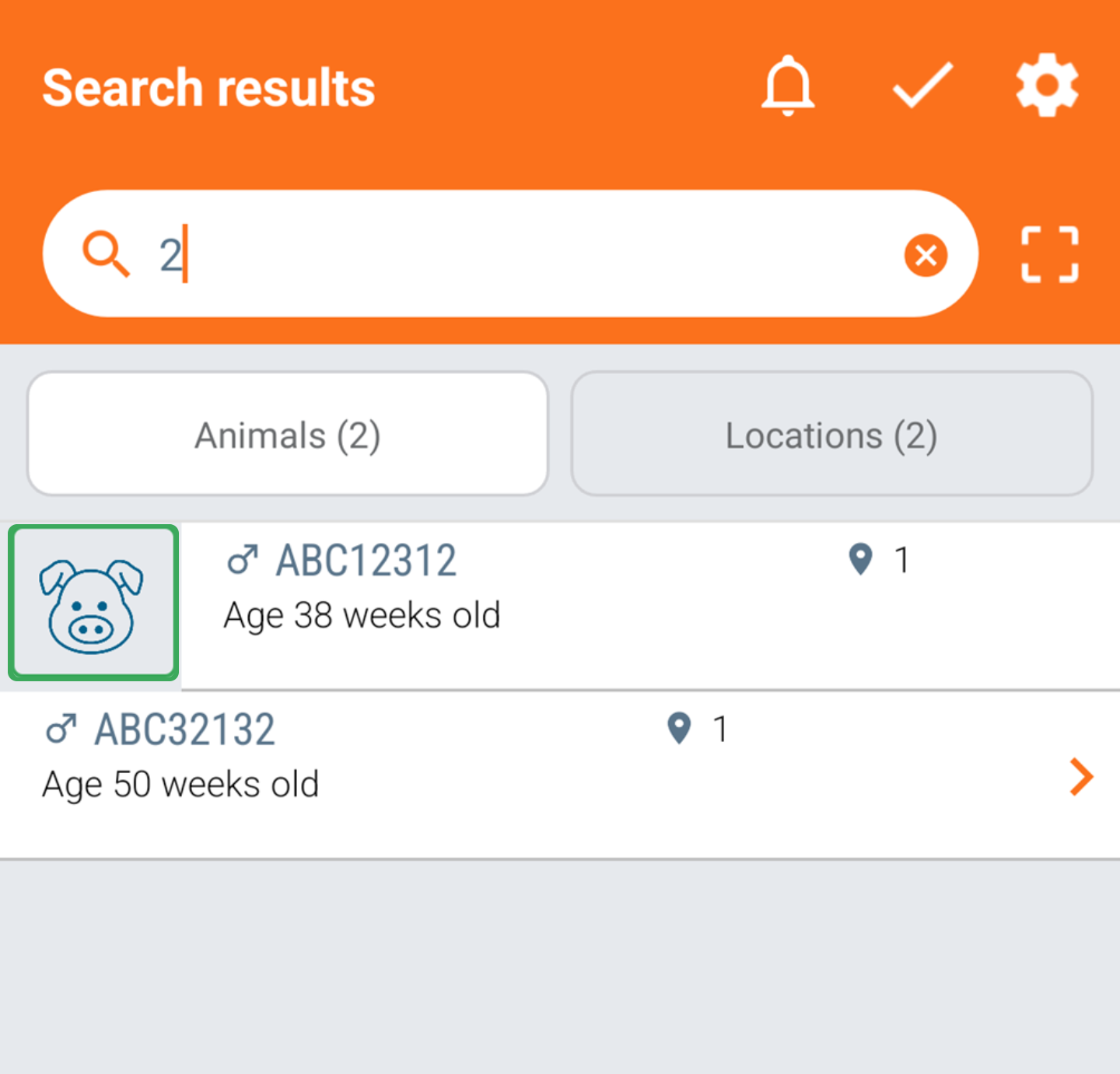
One way to enter actions in AgroVision Sows mobile app is to type in the "Animal number" in the search bar. You will then see the animal with that number. When you select the animal, you will see all actions available to the animal based on the status of the animal. Before choosing the animal, you can also swipe the animal to the right and tap the pig icon to view the animal card.
Register events by using a RFID bluetooth reader and ear tags
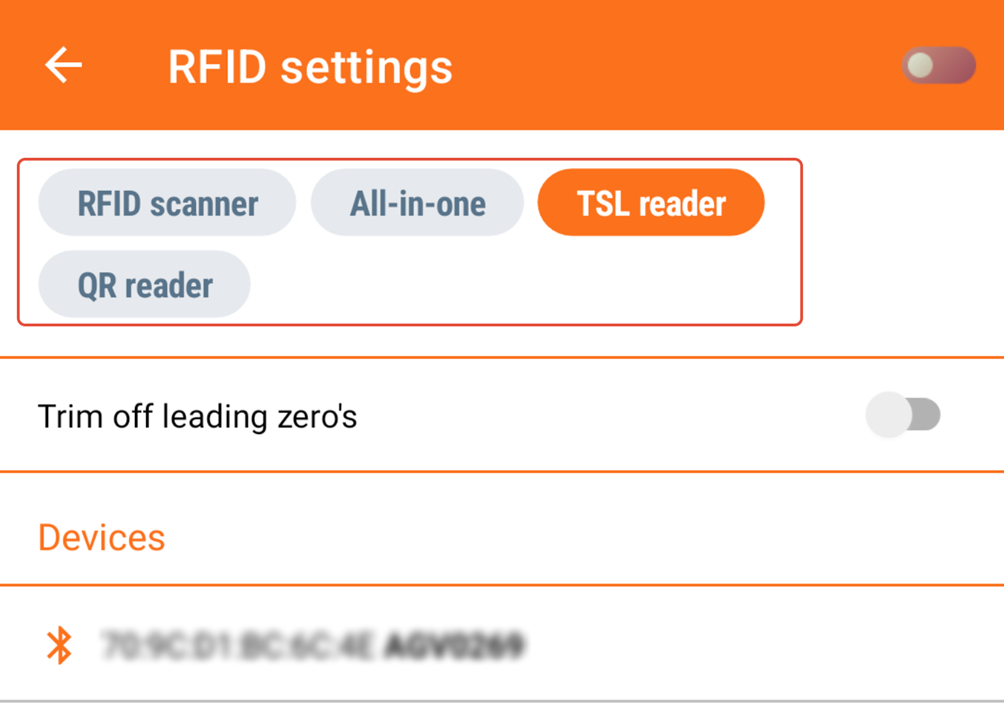
You can use your RFID scanner to read ear tags of your animals or via any of the data entry options. Before connecting the reader to the app, you need to have paired your reader to your mobile or tablet. Once done, go into AgroVision Sows mobile app and go to "Settings". Here, you press "Use RFID", choose the type of reader in the top, find the paired reader on the list and connect it with the app.
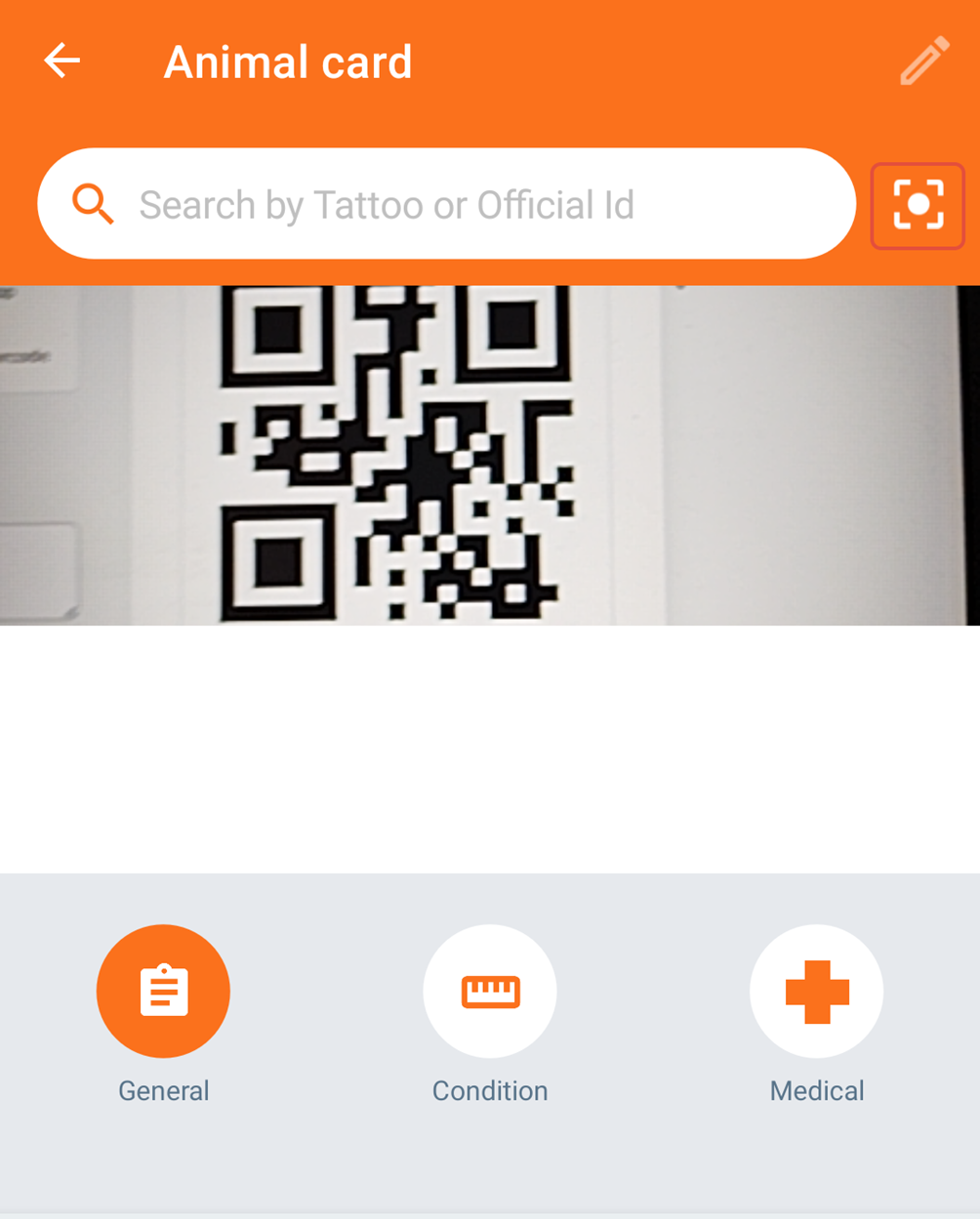
Register events by using QR code
Activate the QR scanner on your mobile app to search animal by QR code. This will turn on the camera and you can now scan the QR code on the animal card and register an event.