To sell your breeding stock, use the menu "Selling of animals". In this menu you can:
- Create a customer catalogue.
- Create your sale.
- Enter the transaction details of your breeding animals.
Create customer
Before selling animals, you must first create the customer, you will be selling to. This can be done by two methods:
- Go to "Settings" - "Management" - "External Relations". Create the customer in a new row and choose "Customer" as type. Furthermore, checkmark if the customer is active. Read more on external relations.

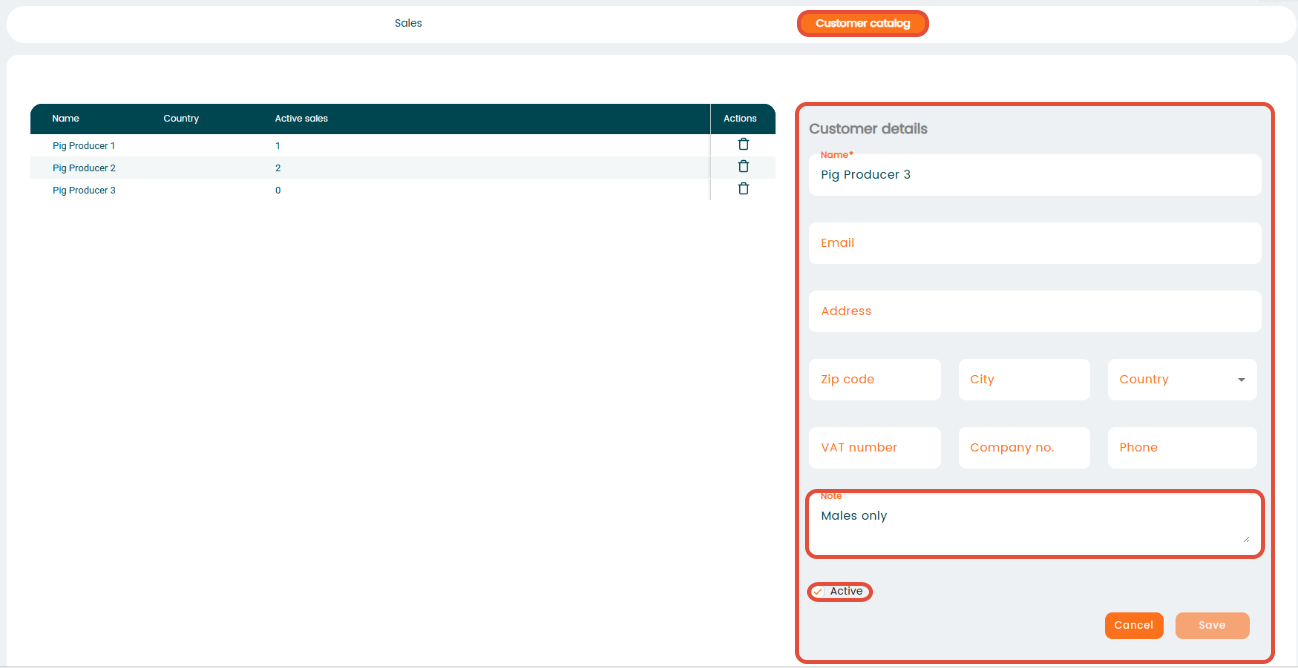
- Alternatively, you can add a new customer from the menu "Selling of animals" by choosing the tap "Customer catalogue". Simply fill in customer informations and checkmark the "Active" box. You can also enter a note. This note will occur in "Customer notes" on the delivery note and only be visible for internal use.
Create sale
Go to the menu "Selling of animals" and make sure, you are in the tap "Sales". Here, existing sales will be shown - read more on how to edit existing sales.
To create a new sale click "+Add new row".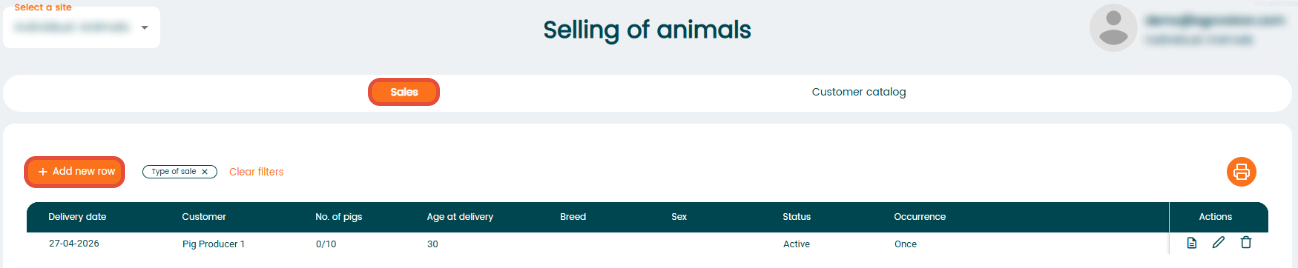
Choose between a "New single sale" or a "New repeating sale".
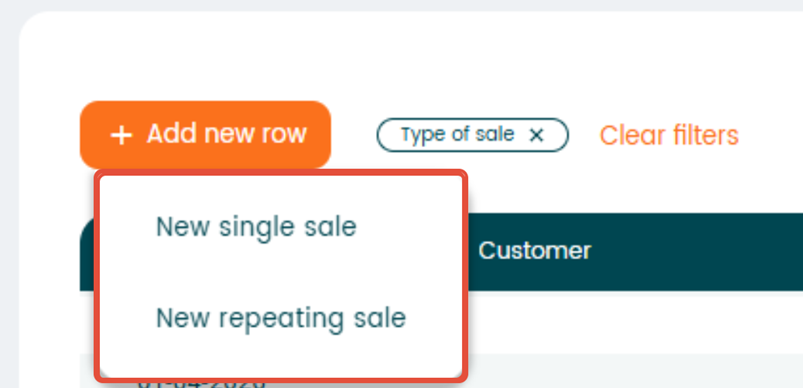
- "Single sale" (one-time sale): A sale that occurs only once. It is not scheduled to happen again automatically.
- "Repeating sale" (reoccurring sale): A sale that repeats automatically based on a schedule you set (e.g., weekly or monthly). You can configure the recurrence so the system creates new sales for this customer at the selected intervals.
Single sale
When you click "New Single Sale" a new window will open. Here, you can enter the sale details by choosing between the four taps in the top of the window.

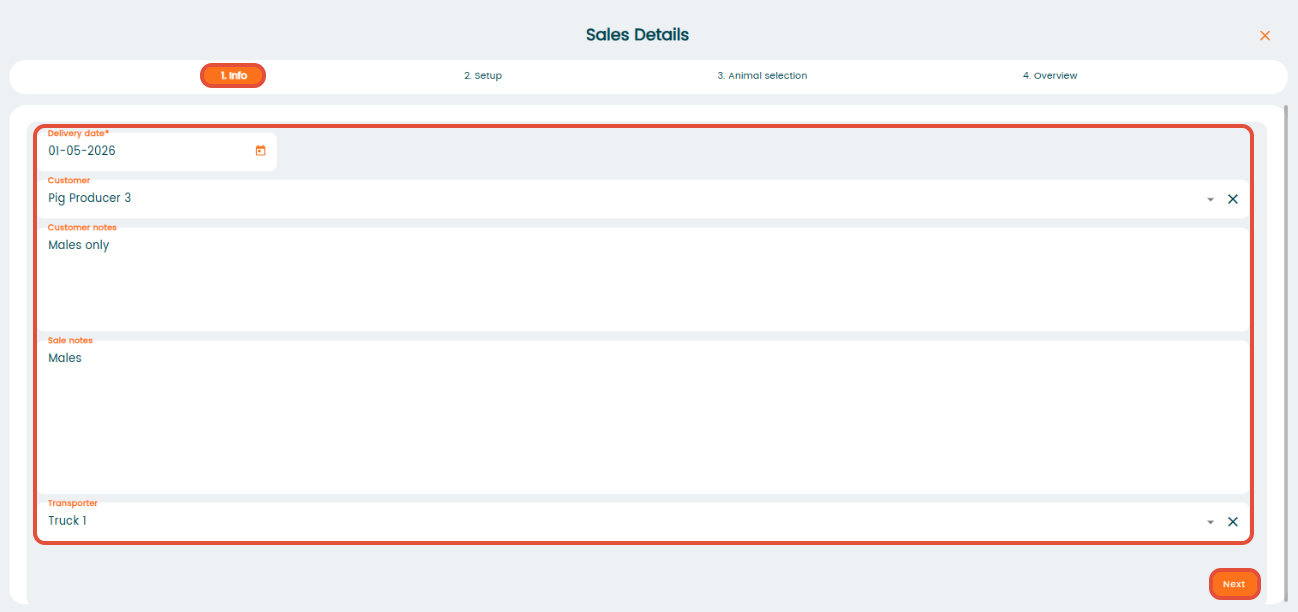
In the tap "1. Info", you enter the delivery date, which is required. Afterwards, it is possible to select a customer from the list. Note that the customer is not required in this step, it can also be added later. However, there must be a customer on the sale to approve it.
In "Customer notes" you will see if there is a internal note on the chosen customer. This is used for internal purposes only, and will not be visible for the customer on the sale when approved.
You can write a note in "Sale notes", which will be visible for the customer. It is also possible to choose a transporter.
Click "Next".
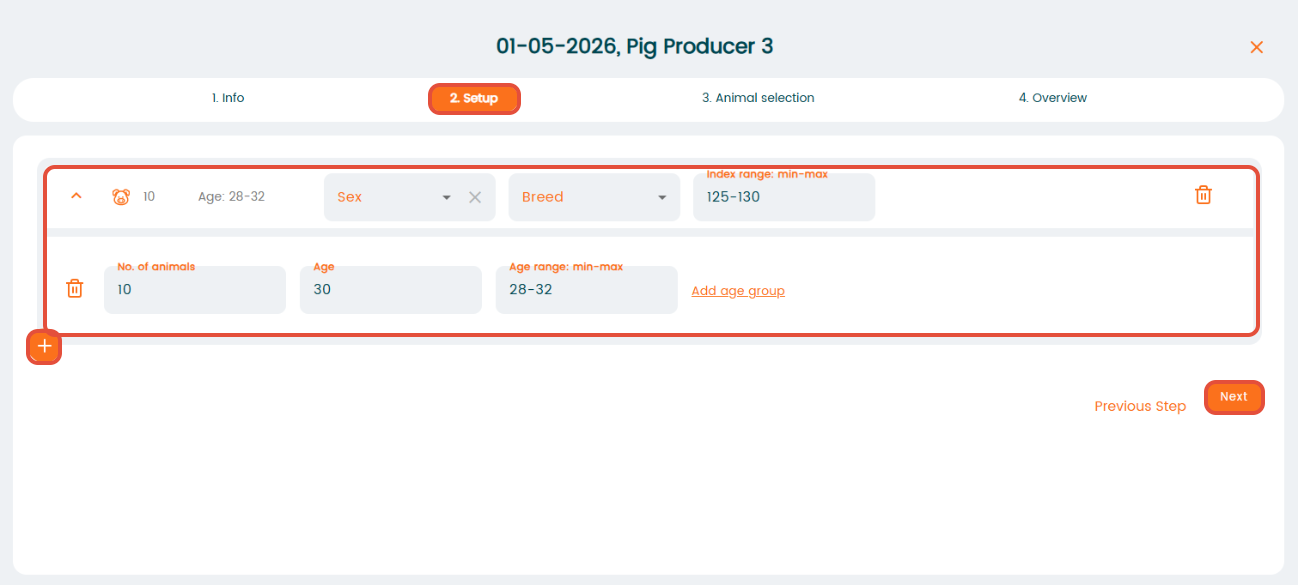
In the tap "2. Setup", you can define the criteria for which animals should be selected. This includes age, sex, breed, etc. If you do not want to set any criteria, you can skip this step and choose your animals manually in the next tap "3. Animal selection".
If you have created your animal criteria, it is possible to press the "+" icon to the left to add another animal criteria section. In this way, you can add different animal groups to the same sale.
Click "Next".
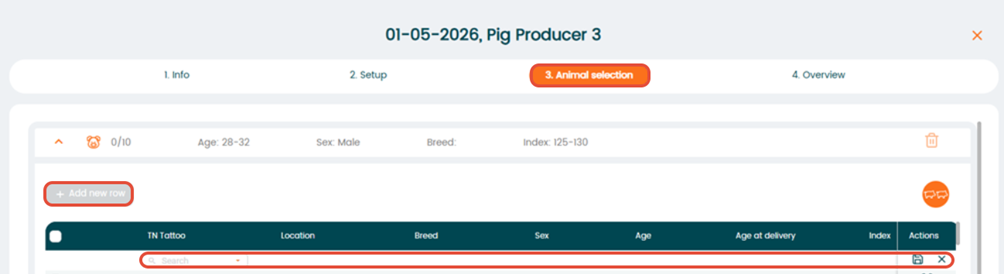
The tap "3. Animal Selection" will display animals based on the criteria you set. If you skipped setting up criteria, you can add animals manually by clicking “+Add new row” and search for the animal by the tattoo.
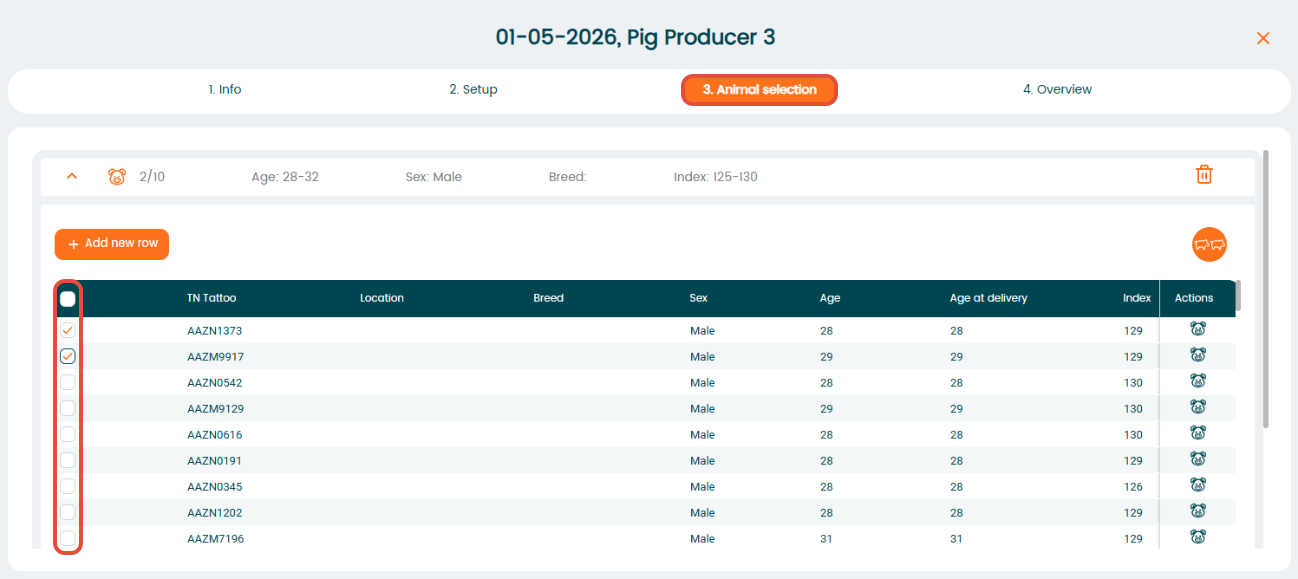
From the list of displayed animals, select the animals that are valid for sale by checking their boxes, or select all animals by checkmark the box at the top. If you have checkmarked an wrong animals for the sale, simply remove the checkmark.
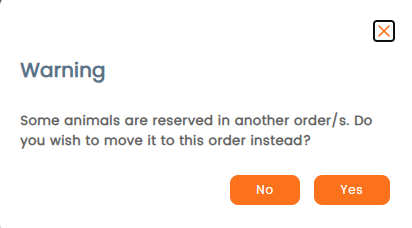
If some animals are already reserved, the program will provide you with a warning message.
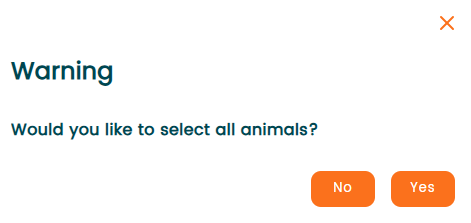
It is also possible to add more animals to your sale, than you have entered in the criteria. In this case, you will also receive a message.
In the final tap "4. Overview", you will see an overview of the selected animals. Here, you will also be informed if there is any remarks on the animals.
An example could be if you have chosen too many animals for the sale or if some animals do not fit the order criteria. In this case, a small warning icon will be shown for the animal in question and by hovering your cursor over the icon, the program will inform you of the reason why this animal does not fit order criteria.
It is possible to go back and select another animal if needed.
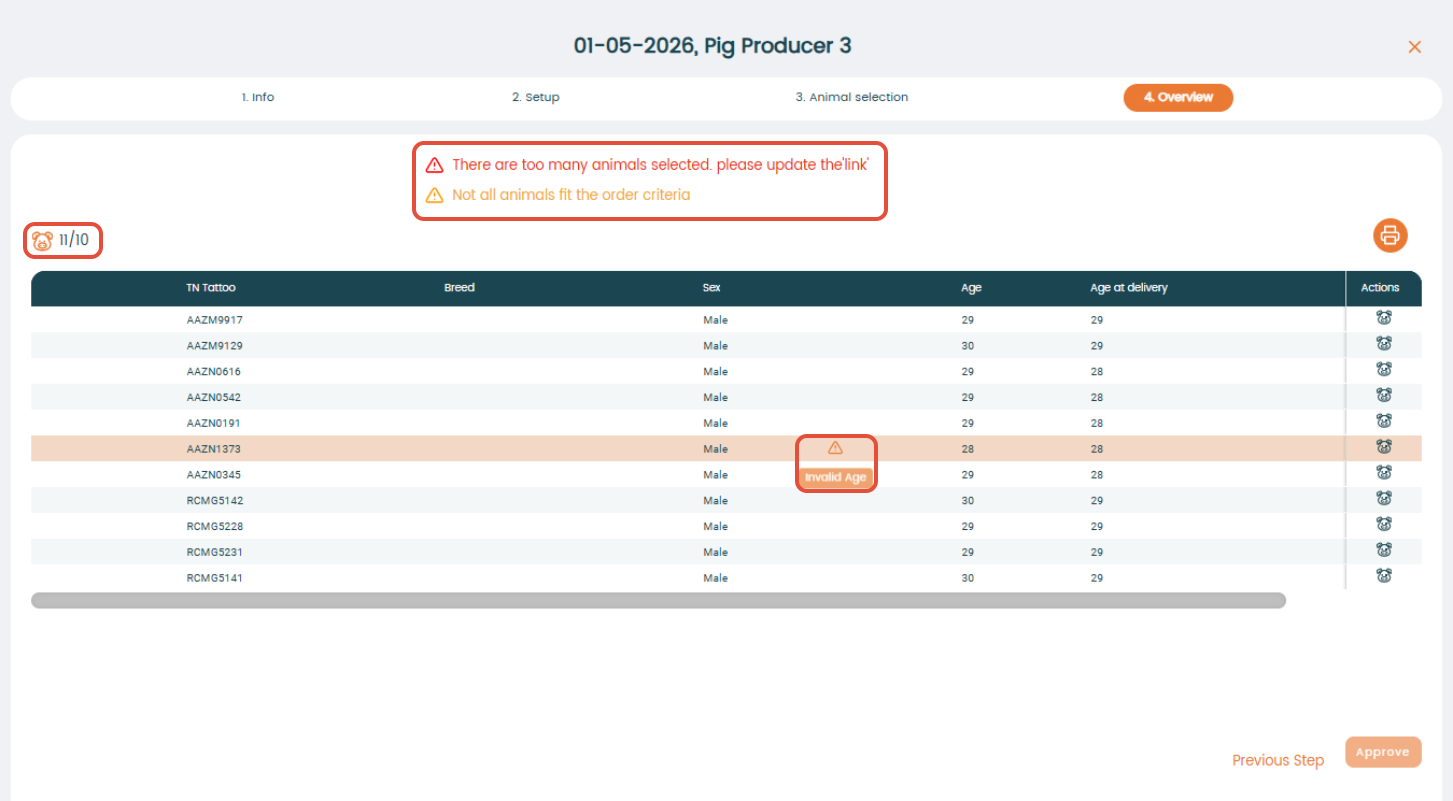
To complete the process, click "Approve" and the sale will be created.
Note: a sale can only be approved a maximum of one day into the future.
Afterwards, the sale will be available in the sales overview.
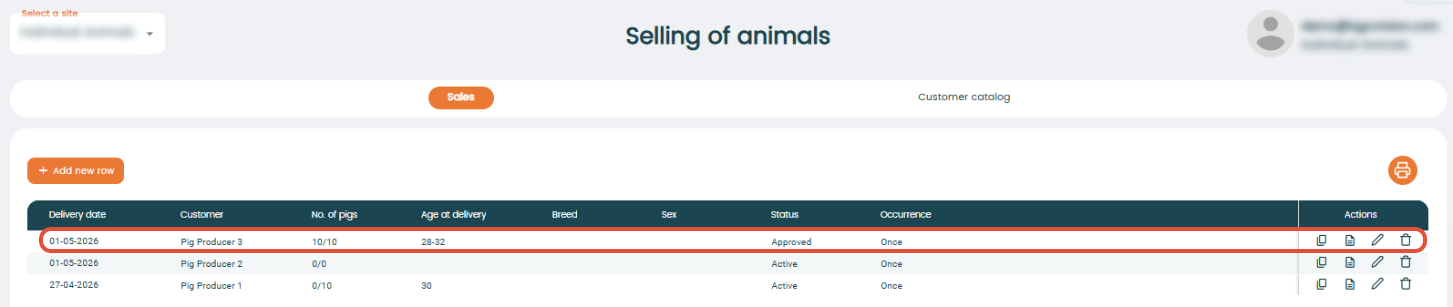
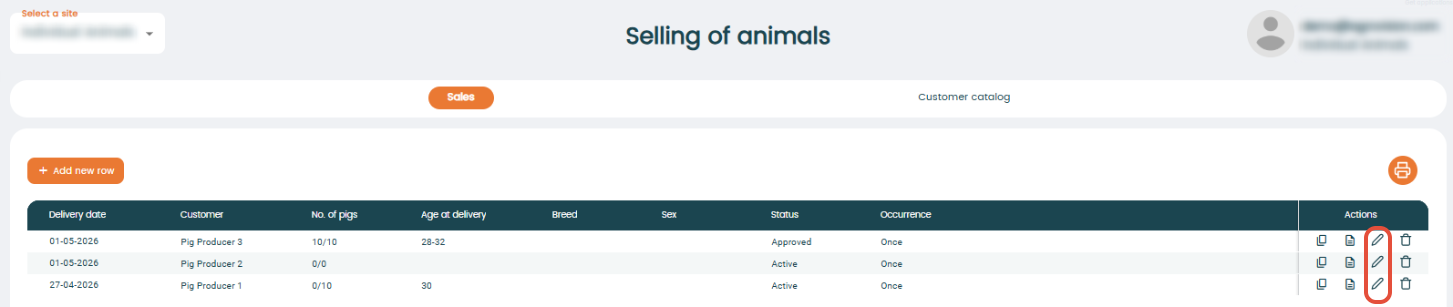
To edit a sale, click on the pencil icon in the action column for sale you want to edit and it will automatically become editable.
Repeating sale
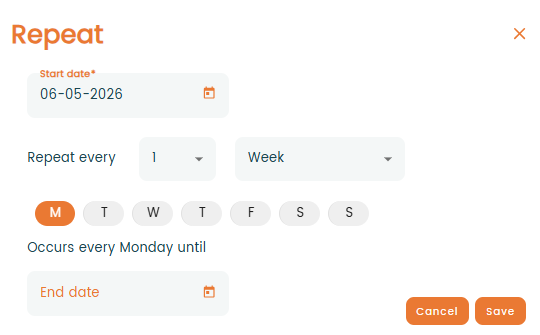
When you click "Repeating sale", a new window will appear asking to enter the reoccurrence.
Enter your criteria on how often you want the sale to repeat and press "Save".
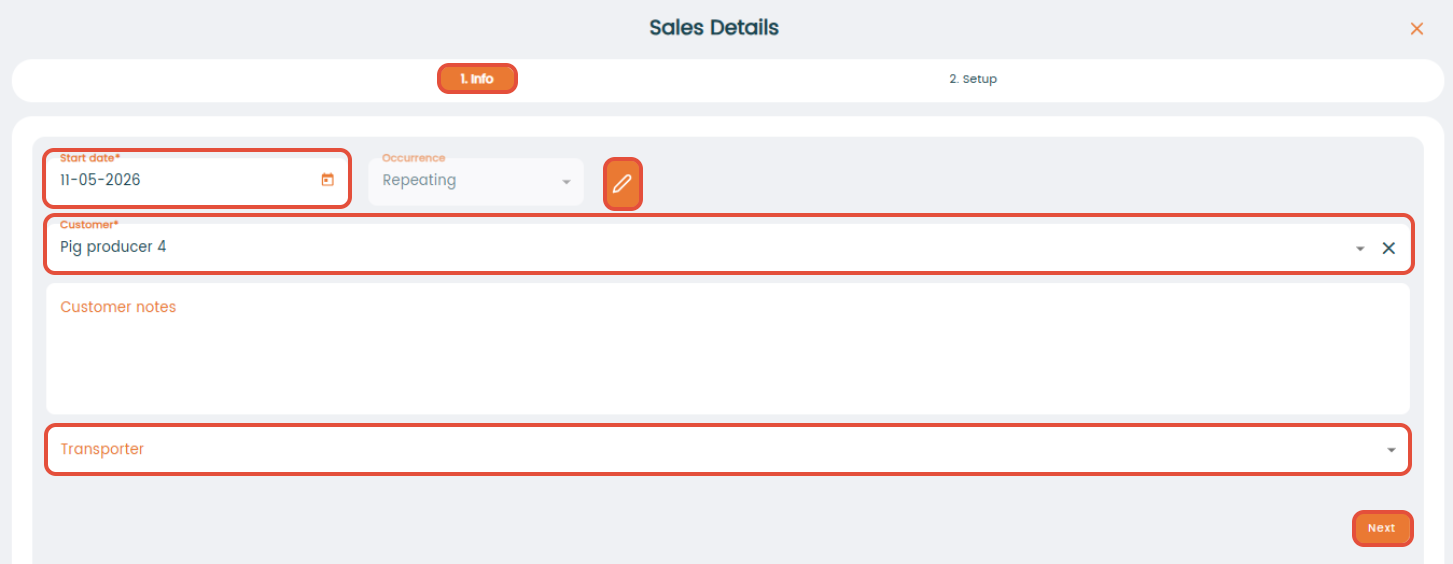
Afterwards, you setup the details for the sale.
In the tap "1. Info", the starting date will be shown and it will also be visible that it is a repeating sale. To edit the reoccurrence, click on the pencil next. Add a customer and a transporter. Press "Next" when done.
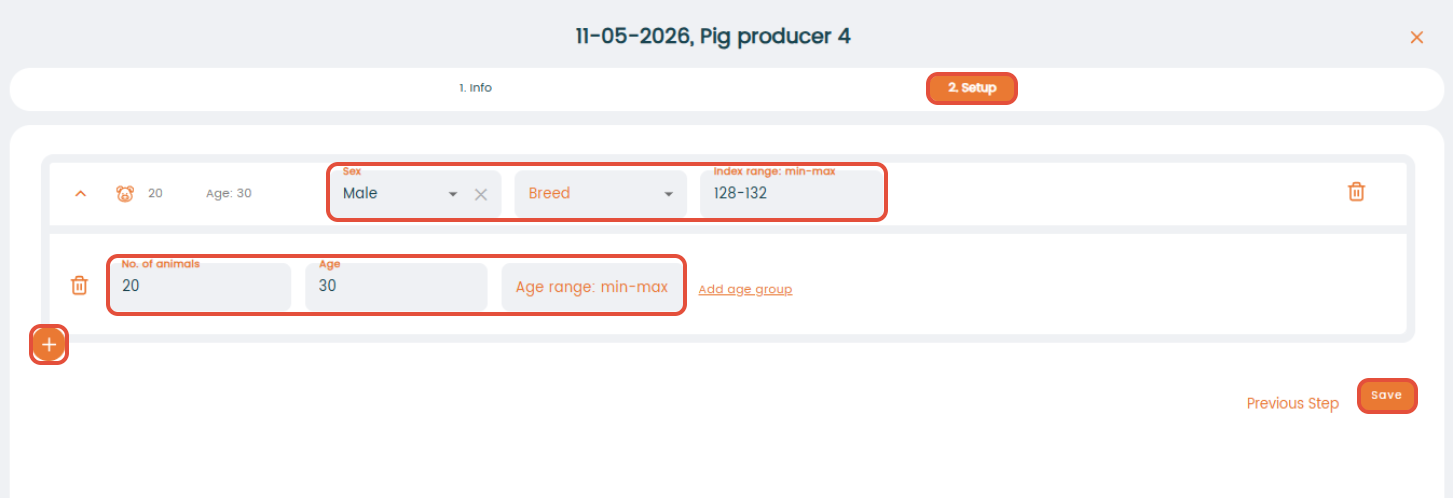
Now, go to the tap "2. Setup" and decide your animal selection criteria such as number of animals, breed, age etc.
It is also possible to add another section of animal criteria by clicking on the "+" sign at the bottom left of the screen.
Press "Save" and the window disappears.
The program returns to the first page showing all existing sales, including repeating sales.
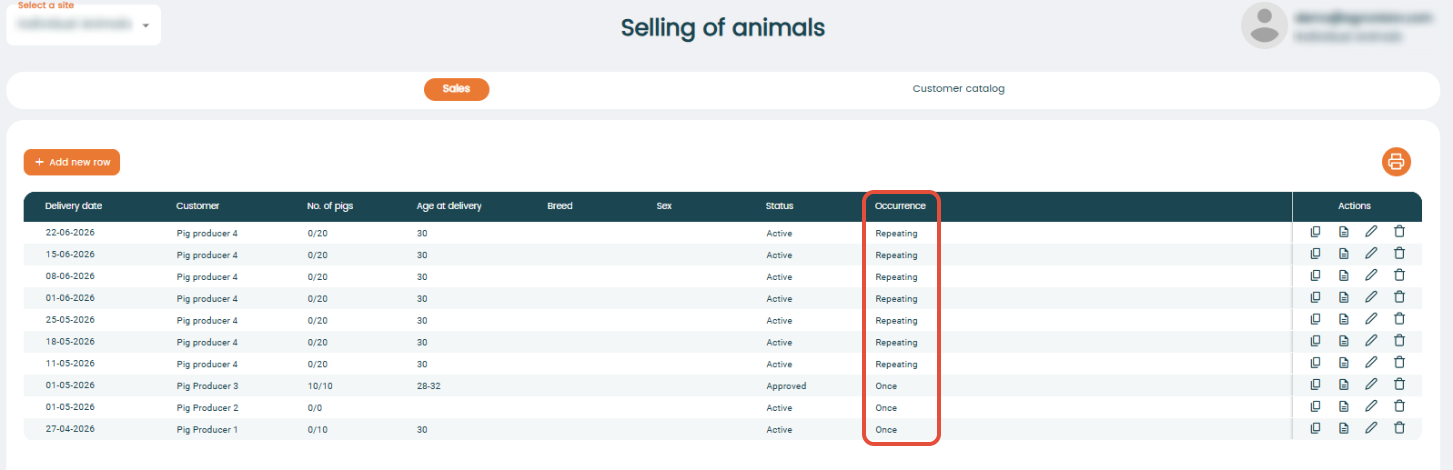
You can now choose the next sale and select your animals. In the sale, you will be notified that you cannot edit the sale details.
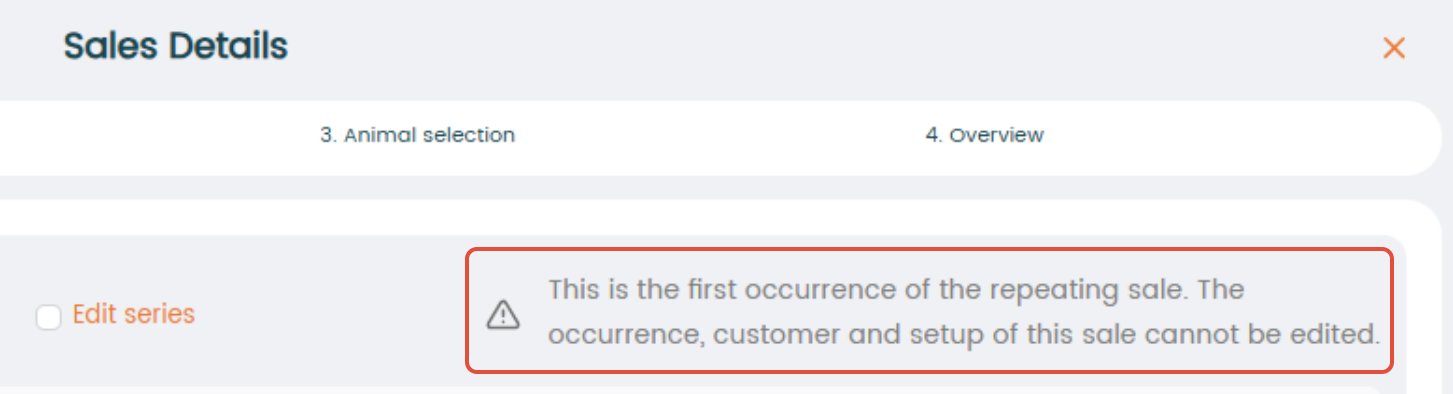
However, it will be possible to edit the sale details by checkmarking the "Edit series" box. Note, that you will be editing the entire series if changes are made. When you have made changes, remove the checkmark, and it will be possible to select your animals and proceed as described in the section "Single sale".

Actions column
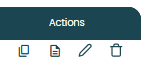
The "Actions" column provides quick options to manage your sale. You can copy an existing sale to create a similar one, open the delivery note for the sale, edit the sale information, or delete the sale if it is no longer needed.
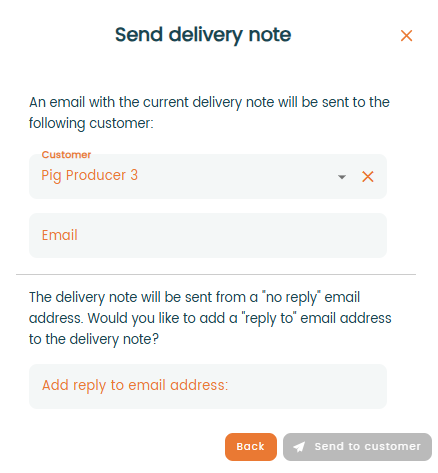
Send delivery note
To send a delivery note, click on the "Send delivery note" icon in the "Actions" column.
You can only send the delivery note if the sale is approved.

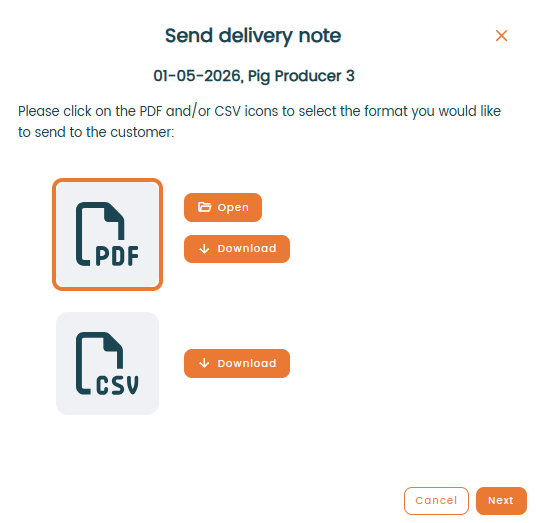
A new window will pop up, where you can select the file format you want to open or send. Click on the file format and select "Open" or "Download". Click "Next" to proceed.
Check and correct (if needed) customer details and click "Send to customer".