
The "Animal Overview" table can be customized to display the information that is most relevant to your daily work. By selecting which columns are visible, you can focus on the animal data that matters most to you, such as identification details, production data, or condition traits.
This article explains how to modify the column layout in the "Animal Overview" table by adding or removing columns using the "Column selection" option.
Click the "Column selection" icon located in the top-right corner of the table. The column selection window will open.

The window contains:
- "Available columns" (left side) – columns not currently displayed;
- "Selected columns" (right side) – columns currently visible in the table
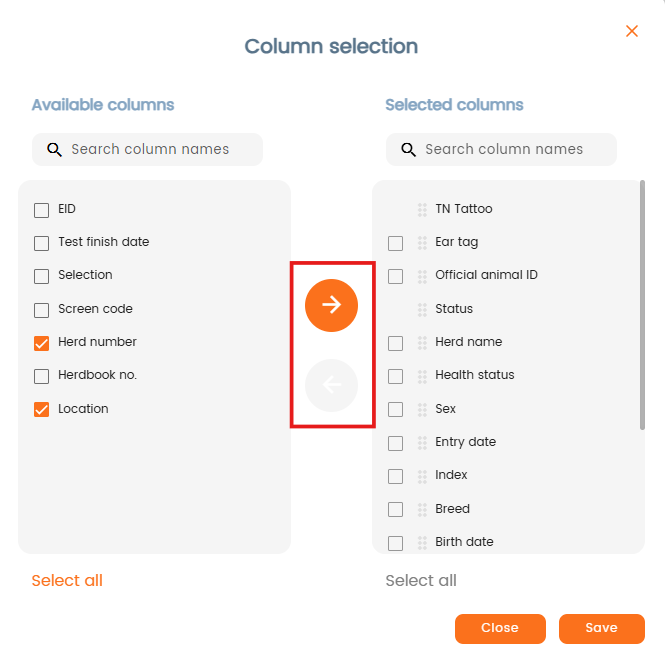
To add a column to your layout:- Find the column in the "Available columns" list. You can use the "Search column names" field to find it quickly.
- Select the checkbox next to the column name.
- Move it to Selected columns (using the arrow button)
- Click "Save".
The column will now appear in the "Animal Overview" table.