
This article explains how to enter data in the program using the "Animal Events" screen. The same process applies to most event registrations in the system. As an example, we will start by selecting an event and adding a new record.
Navigate to "Animal Events" from the main menu. At the top of the screen, you will see several event types, such as "Entry", "Relocation", etc.
First, select the event type you want to register. Click on the event tab (for example Entry) at the top of the page. Click the “+ Add new row” button located above the table. A new empty row will appear in the table where you can enter the information. Fill in the fields for the animal in the new row.
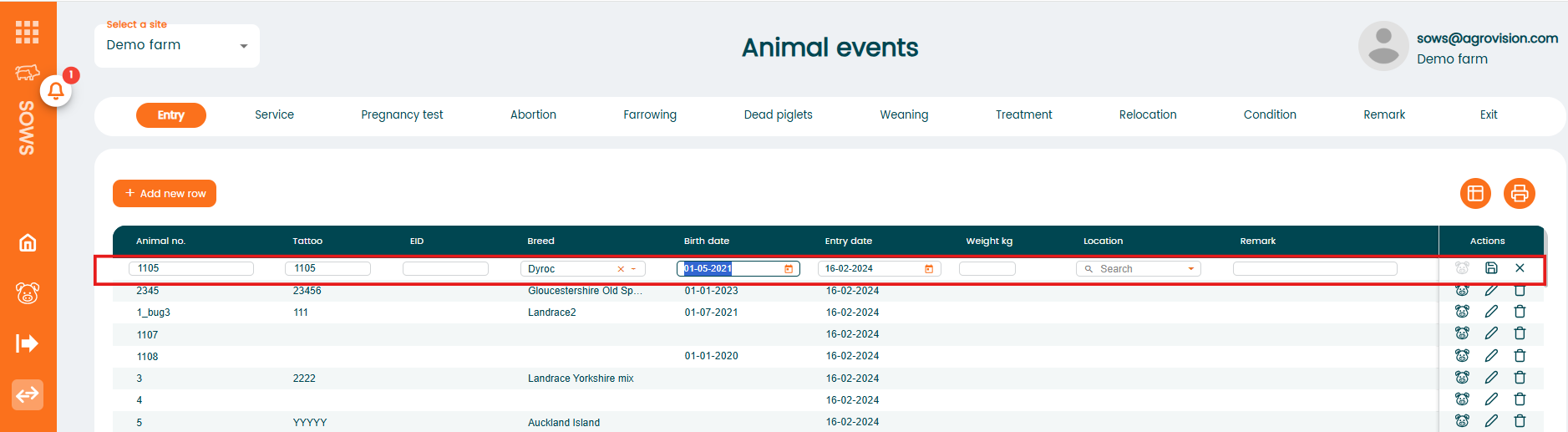
To make data entry easier using only the keyboard, use the following keys:
- "Arrow keys" can now be used to navigate within dropdown menus.
- "Down" arrow – opens the dropdown.
- "Right" / "Left" arrows – opens sections within a dropdown (e.g., locations and their sub-sections).
- "Up" arrow – Navigates upward in the list.
- "Space bar" – Selects the highlighted option in the dropdown.
- "Enter"
- Moves to the next field.
- When pressed in the last field of a row, the line will be saved automatically and a new row will open to continue data entry.
- "Tab"
- Moves to the next field;
- "Shift" + "Tab" moves to the previous field.