
The "Task Management" option helps you keep track of what needs to be done on the farm. In the calendar view, users can easily see their tasks. These can be worklists or other tasks that can be assigned to specific employees. Tasks can occur on a single day, it can be scheduled to occur on specific days or it can be scheduled to occur daily, weekly or monthly. The decision is up to you.
Go to "Task management".
Existing tasks
On the left side of the screen, you can view and edit existing tasks. Simply click on a task and it will appear on the right side ready to be changed or set to "Done".
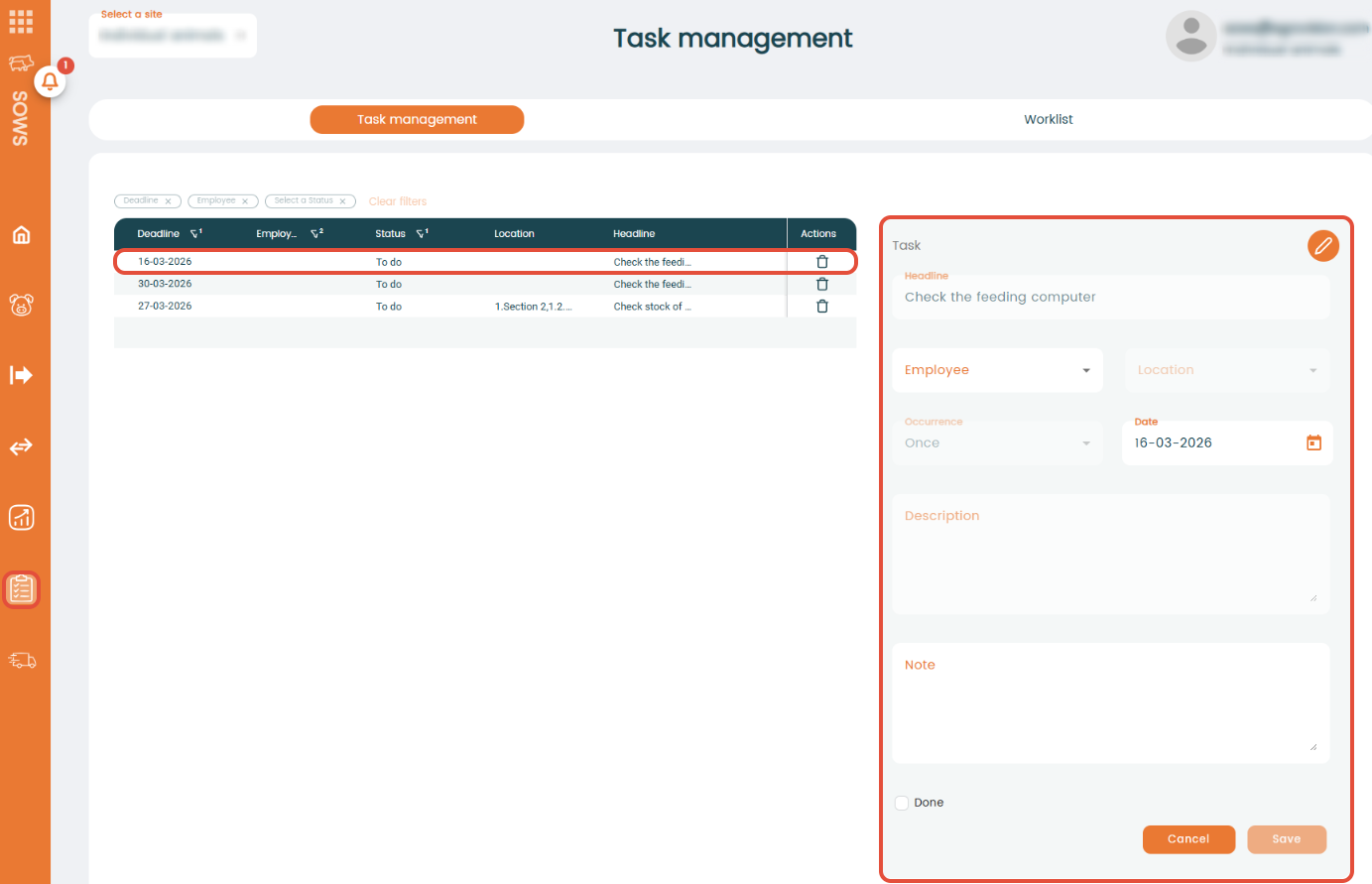
Press "Save" if new changes have to be saved or press "Cancel" to create a new task.
Create a new task
On the right side of the screen, fill in the information about the task:
- "Headline": Enter a title for the task (e.g. “Clean the feeding station”).
- "Employee": If needed, choose the employee responsible for this task from the drop down menu.
- "Location": Choose the location of the task.
- "Occurrence": Specify how often the task should occur: once or repeating.
- "Status": Set the current status of the task. The task is by default set as active. You can select inactive, so the task will not be visible for the employee.
- "Date": Choose the date when the task has to be done.
- "Priority": Assign a priority level to the task (e.g. none, low, medium, high, urgent).
- "Description": Add additional details about the task. This will help the employee understand the task requirements.
Click "Save"
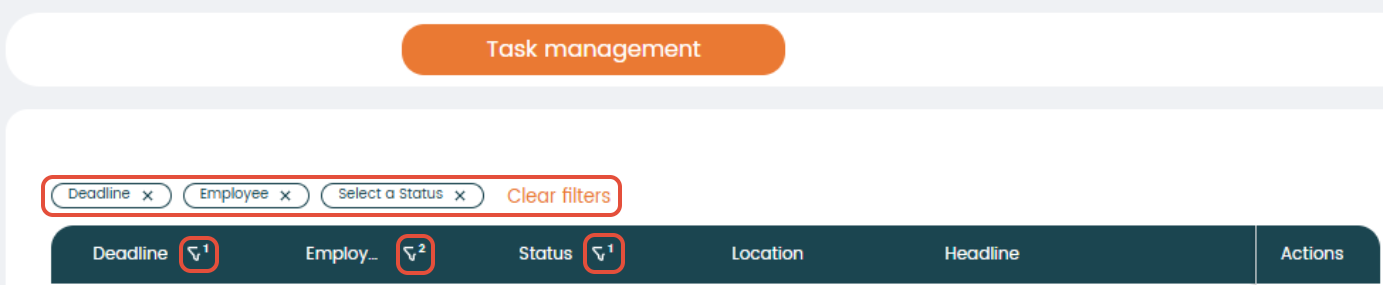
The task now appears in the task list on the left. You can filter tasks by any criteria, by selecting the filter icon next to the column header.
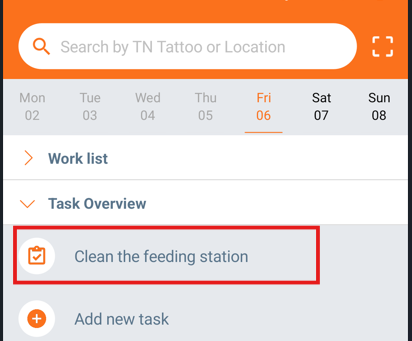
When synchronizing data with the mobile app, this task will appear on the device used by the employee. On the mobile app, the task is shown on the date chosen when creating the task. In this example on 06-03-2026.
Repeating tasks
You can also choose to create repeating tasks. To do so, choose "Repeating" in the "Occurrence" column.
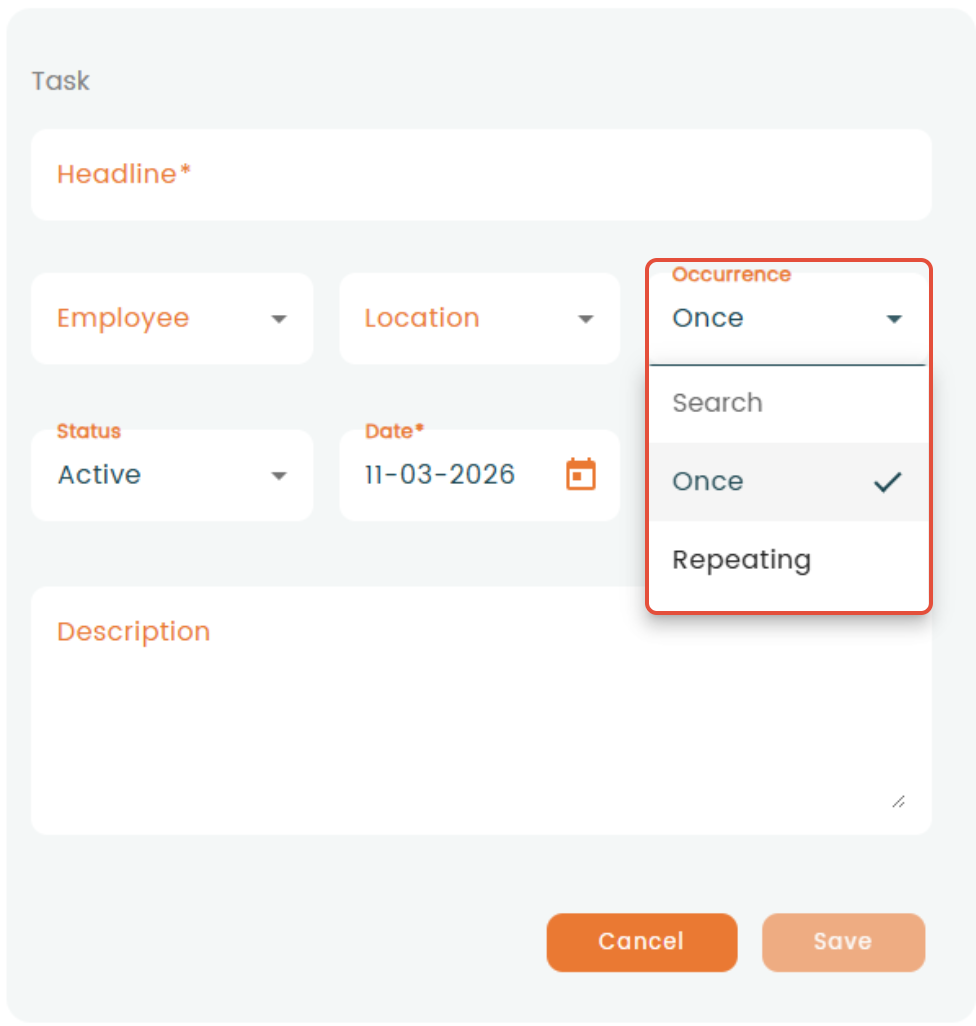
When you choose "Repeating", a new window will appear. Here you can define the reoccurrence of the task.

- "Start date": Select start date of the task.
- "Repeat every": Choose how many times the task should appear on the to do list (e.g. the task will appear once per week). Furthermore, choose one or multiple week days the task should occur (e.g. the task will occur every Tuesday).
- "End date": Select the end date for the task. After this date, the task will not be shown on the task list.
Press "Save".