
In PigVision, it is possible to add or remove columns in PigVision's default layout, so you can create your own layout with the columns that you use daily.
In the example below, we create and save a layout from the service window.
Go to "Sows boars" - "Service".
Here you can either right-click on a heading in a column or press the "Layout setup" icon to bring up the list of columns. If you click on the icon, you must then select "Edit global layout".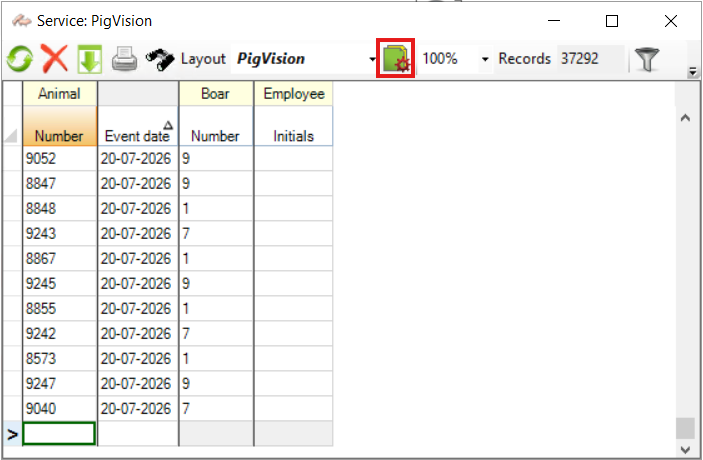
Now a new window will appear with a list, where you can check mark the columns that you would like to have added to the layout, or you can remove the check mark if there are one or more columns you do not need.
Press "Ok".
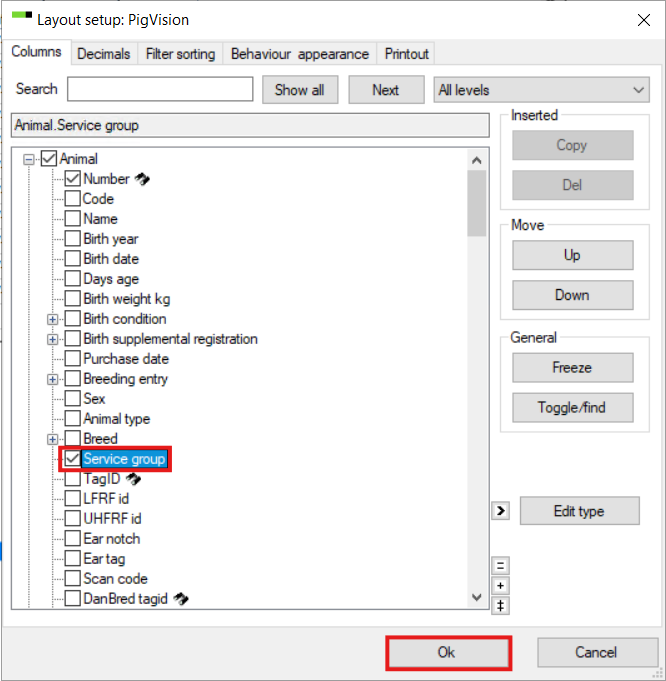
Now the column has been added to PigVision's layout. In order for the column not to disappear in the next PigVision update, you need to save the layout.
Start by clicking on "PigVision" next to "Layout" at the top of the window.
Then select "PigVision" - "Copy". Now you need to name your layout. Do not include the word "PigVision" in the new name as the program recognizes this word and resets it to default when updating.
Press "Enter" on your keyboard after typing the name of the layout.
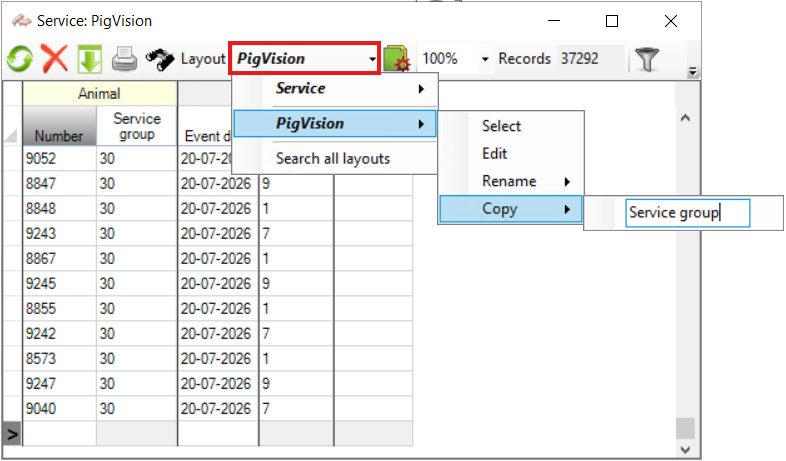
The layout now appears as part of the layouts you have created in this window. You can create as many layouts as you want.
Now, tap on the name of your new layout and make it global.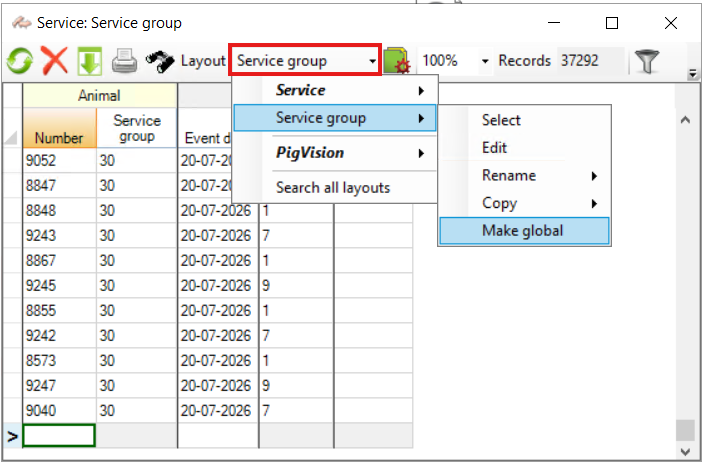
After this, the layout name will be in bold, which indicates that all your users on your logins to PigVision can see the new layout.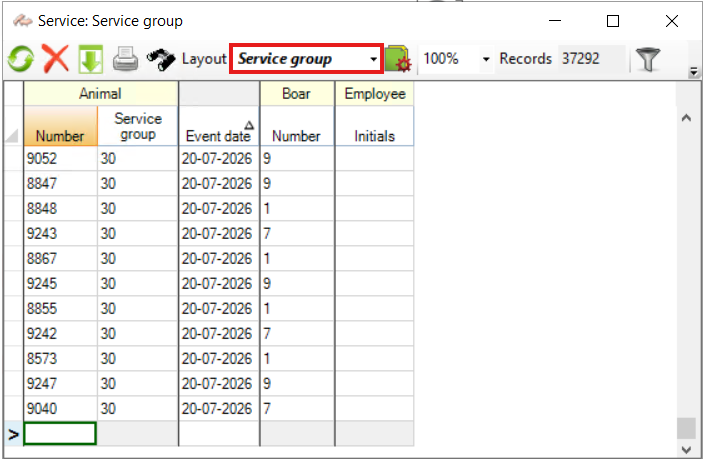
Your layout is now saved and will not be updated/reset in the next PigVision update. Once you have copied a layout and named it, you can make column changes directly in the layout. You do not have to make a new layout every time.